I have defined a custom input source (aka keyboard layout) for Mac OS to enable me to type the premodern English characters ash (æ, Æ), eth (ð, Ð), thorn (þ, Þ), and yogh (ʒ, Ʒ). This is essential for my research, as otherwise I would have to copy and paste each character each time I type a block quotation or produce an edition of a poem. Now that I’ve gotten used to the custom keyboard I can type Middle English as fast as I type Present-Day English.
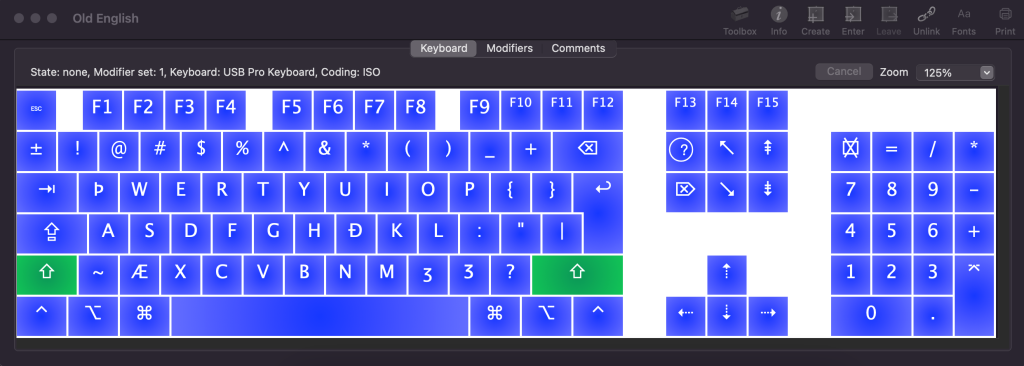
I defined the keyboard using the following substitutions: ash mapped onto z, eth mapped onto j, thorn mapped onto q, and yogh mapped onto < (lowercase) and > (uppercase). (The letters j, q, and z are rare in Old and Middle English.) If I had it to do again I might have mapped yogh onto x, also rare in Old and Middle English; but I am too used to the layout to want to change it now. I previously replaced v, which is not used in Old English, with wynn (ƿ, Ƿ). As I work more in Middle English than Old English these days, and wynn went defunct before the Middle English centuries, while v was used in more words, it is more important for me to have v available within the custom keyboard.
Here is the latest version of my keyboard layout in .keylayout format for anyone to use. Maybe this will be helpful to the medievalist readers. If you’d like to modify it at all, I recommend the program Ukelele.
To install on a Mac, copy the file into Library > Keyboard Layouts or create this subfolder. Then activate the layout by visiting System Settings > Keyboard > Text Input > Input Sources > Edit > “+.” The custom layout should appear under Others with the name Old English. It is then a simple matter of defining a keyboard shortcut to toggle between the regular layout and the Early English one. I use command + spacebar, which is convenient.
 Eric Weiskott